GitLab CI/CD
The possibilities of GitLab for continuous integration and continuous development are huge.
Notice
A repository is great but together with continuous integration and continuous delivery/deployment it can also make your work easier and faster.
By giving a .gitlab-ci.yml configuration within the project this can be configured. The YAML file defines a set of jobs with constraints stating when they should be run, this is called the pipeline.
To enable CI/CD go to "Settings" > "General" under "Visibility, project features, permissions" you can enable the "CI/CD" functionality.
A pipeline is run
- normally on push events
- can also be triggered by schedule on time
- manually under "CI/CD" > "Pipelines"
- and using the REST API
Solution
In the following description I will describe the complete configuration possibilities with short examples. All these is used to make myself some templates which simplify and standardize the whole process for me. Read more about it under gitlab-ci Templates.
Basic Settings
Stages
The stages are the basic phases which are mostly the technical steps. They will run synchronously one after the other. You may use names like:
stages:
    - test # unit test, code coverage, lint, SAST, metrics
    - build # compile, transform, pack code
    - integration # integration testing, end to end testing
    - release # copy to server or registry
    - deploy # make active on server
    - review # regression tests, accessibility, performance/load, DAST
It is completely free to use any name as stages but the above are some common used ones.
The stages .pre and .post are always there and can be used to define jobs which run before or after the normal stages.
Jobs
While each of them may contain multiple jobs maybe also for different networks (test/stage/prod) or different environments (debian/redhat/macos) this can lead to the following structure:
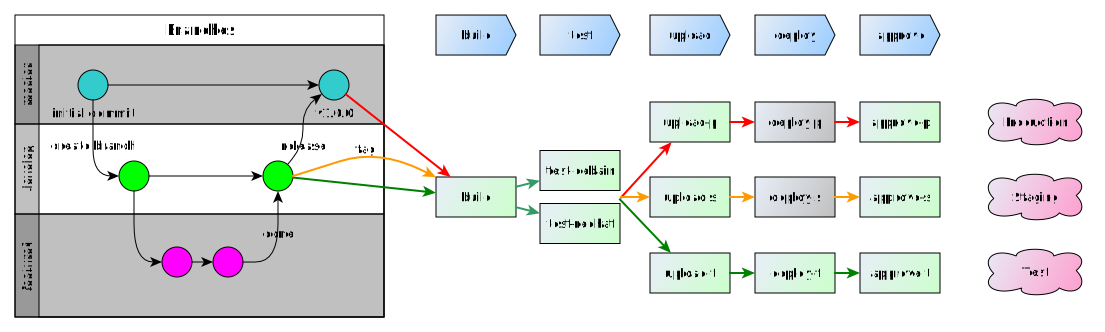
You can see the jobs after selecting a pipeline in the UI. You can cancel, retry or show the log of it. Additionally the deploy on production may be a manual task which wait for you to click the play button in the GitLab web UI.
Job names:
- can be grouped if the name is the same with a step like:
test 1/3,test 2/3,test 3/3 - can be hidden if prefixed with
.and will not be called
Attention
Jobs are picked up by runners and executed within the environment of the runner. What is important, is that each job is run independently from each other and in parallel.
The jobs can contain dependencies and rules which define when and if a job is run. And the can share data between each other as artefacts.
To have a better insight into the jobs you can select them in the UI under "CI/CD" -> "Pipelines" or "Jobs". There you can download the artefacts from finished jobs and have a look into the logs, also while running.
Each job at least needs a script tag but can also use a before_script or after_script, too. If the script returns with an exit code the job will fail.
If it is set to interruptible: true the job will be canceled if a new pipeline starts on the same branch.
Rules
Often a job has to run on specific circumstances only like if a tag was made or pushed to a specific branch. With the help of rules you can specify if a job is included in a specific pipeline run and also vary the way the job works.
Note
Previously only and except were used for these but you should better use the rules now.
You define rules within the job like:
job:
    script: ....
    rules:
        - if: $CI_COMMIT_BRANCH == $CI_DEFAULT_BRANCH
All rules will be checked and the Job will:
- run if a matching rule contains
when: on_success(default) - run later if a matching rule contains
when: delayed - run if a matching rule contains
when: always(also if previous job failed) - added but not run if a matching rule contains
when: manual - no rules are defined
And it is not included if:
- there are rules but no rule matches
- a matching rule contains
when: never
Attention
The rules are evaluated in order and the first rule matching will be used.
If you need to match multiple conditions (AND) you have to put them together in one if condition like:
job:
    script: ....
    rules:
        - if: $CI_COMMIT_BRANCH == $CI_DEFAULT_BRANCH &&
              $CI_PIPELINE_SOURCE == "schedule"
As you see you can use &&, || and parentheses for logical groups. Also you may use comparisons like ==, !=, =~, !~ and use null to check for undefined.
Multiple rules are evaluated like in the following example:
job:
    script: ....
    rules:
        - if: $CI_PIPELINE_SOURCE == "push"
          when: never
        - if: $CI_COMMIT_BRANCH == $CI_DEFAULT_BRANCH
On a push to a branch the first rule will prevent the job to run, but if it called by schedule and on the default branch it will be executed.
As an alternative or addition to if conditions you can add exists and changes parts (which allows variables in it's values):
existswill match if the defined file is therechangeschecks if the defined file was also changed in the push, which started the pipeline- and combined
if,exists,matchneeds all of the given to succeed
A rule without an if condition can be added at last which will work as an else-setting use when: on_success only to run the job if all previous rules didn't match.
All further settings in the rule are used to change the way the job is handled. You may use allow_failure, ...
Optional manual job
when: manual
allow_failure: true
If allow_failure is set the pipeline will go on with the following jobs skipping it to run manually, that makes it optional. Without that the pipeline will pause till the manual job was run, making it a blocking job. You can also allow failures only for specific error codes by using exit_codes: 137 instead of a true as value.
Reuse of rules is also possible, to use the same rules in multiple jobs you can define it as hidden job and reference it from others:
.default_rules:
    rules:
        - if: $CI_PIPELINE_SOURCE == "schedule"
          when: never
        - if: $CI_COMMIT_BRANCH == $CI_DEFAULT_BRANCH

job1:
    rules:
        - !reference [.default_rules, rules]
    script:
        - echo "This job runs for the default branch, but not schedules."

job2:
    rules:
        - !reference [.default_rules, rules]
        - if: $CI_PIPELINE_SOURCE == "merge_request_event"
    script:
        - echo "This job runs for the default branch, but not schedules."
        - echo "It also runs for merge requests."
Use variables in rules to define variables for specific conditions:
job:
    variables:
        DEPLOY_VARIABLE: "default-deploy"
    rules:
        - if: $CI_COMMIT_REF_NAME == $CI_DEFAULT_BRANCH
          variables: # Override DEPLOY_VARIABLE defined
              DEPLOY_VARIABLE: "deploy-production" # at the job level.
        - if: $CI_COMMIT_REF_NAME =~ /feature/
If you want to skip a job based on some script settings use something like:
testjob:
    stage: test
    image: alpine
    before_script:
        - >
            if [ "1" = "1" ]; then
              echo "Skipping Job because precondition not reached!"
              exit 33
            fi
    script:
        - echo "Script was not skipped"
    allow_failure:
        exit_codes: [33]
Delay / Timeout
It is possible to specify a delayed job directly or through it's rules. That makes the system wait a specified time range to start it. This can help in example on deployment to slowly deploy one after another node. The start_in setting defines the delay.
when: delayed
start_in: 30 minutes
You can also define a timeout: 3 hours to let the job stop and fail if it runs more than 3 hours.
Parallel Jobs
A job can run multiple times in parallel using:
test:
    parallel: 3
    script:
        - echo "job $CI_NODE_INDEX/$CI_NODE_TOTAL"
The variables $CI_NODE_INDEX and $CI_NODE_TOTAL will be set for each one.
You can also iterate over a list of phrases using matrix:
parallel:
    matrix:
        - PROVIDER: [aws, ovh, gcp, vultr]
Or a multidimensional matrix:
parallel:
    matrix:
        - PROVIDER: aws
          STACK:
              - monitoring
              - app1
              - app2
        - PROVIDER: ovh
          STACK: [monitoring, backup, app]
        - PROVIDER: [gcp, vultr]
          STACK: [data, processing]
Scripts
The scripts will run in the defined Docker image. You can use the default or specify another.
An image can be defined directly or together with entrypoint and command:
job:
    image:
        name: ruby:2.6
        entrypoint: ["/bin/bash"]
Note
If your script is unavoidably complex or needs lots of pre setup, consider putting it in a specific docker image. You can debug this seperately, have a shorter running time and keeps the YAML file cleaner
You can define three types of scripts:
before_scriptscriptafter_script
They run in the above order.
job1:
    image: alpine
    before_script:
        - echo "About to start job"
    script:
        - echo "Running job"
    after_script:
        - echo "Job ended"
Warning
If special characters like : or ' are included you need to put the line in single or double quotes. Also characters like {, }, [, ], ,, &, *, #, ?, |, -, <, >, =, !, %, @, ``` may be problematic.
Note
The after_script will also be called on failed jobs and neither changes the return code.
If the script is long you can define sections which can auto collapse:
job1:
    script:
        - echo -e "\e[0Ksection_start:`date +%s`:my_first_section\r\e[0KHeader of the 1st collapsible section"
        - echo 'this line should be hidden when collapsed'
        - echo -e "\e[0Ksection_end:`date +%s`:my_first_section\r\e[0K"
The highlighted lines define the section. Add [collapsed=true] after the section name and before the \r to automatically collapse the section.
Retry
Use retry to configure how many times a job is retried if it fails. If not defined, defaults to 0 and jobs do not retry. You can select 1 or 2 retries.
By default, all failure types cause the job to be retried. Use retry:when to select which failures to retry on.
test:
    script: rspec
    retry: 2 # maximum
test:
    script: rspec
    retry:
        max: 2
        when: runner_system_failure
Possible when conditions (if multiple use array):
always: Retry on any failure (default).unknown_failure: Retry when the failure reason is unknown.script_failure: Retry when the script failed.api_failure: Retry on API failure.stuck_or_timeout_failure: Retry when the job got stuck or timed out.runner_system_failure: Retry if there is a runner system failure (for example, job setup failed).runner_unsupported: Retry if the runner is unsupported.stale_schedule: Retry if a delayed job could not be executed.job_execution_timeout: Retry if the script exceeded the maximum execution time set for the job.archived_failure: Retry if the job is archived and can’t be run.unmet_prerequisites: Retry if the job failed to complete prerequisite tasks.scheduler_failure: Retry if the scheduler failed to assign the job to a runner.data_integrity_failure: Retry if there is a structural integrity problem detected.
Services
Additional Docker images can be defined to run.
services:
    - name: my-postgres:11.7
      alias: db-postgres
      entrypoint: ["/usr/local/bin/db-postgres"]
      command: ["start"]
Artifacts
Specify which files to save as job artifacts. The artifacts are used to transfer data between jobs and also make them available in the UI.
You define the artifacts using path to include files or directories also exclude can be used:
artifacts:
    name: binaries # displayed in the download later
    paths:
        - binaries/
    exclude:
        - binaries/**/*.o
Additionally you can set expire_in: 1 week to expire them in a defined time range, expose_as: <name> will expose it in the merge request. They are only uploaded on success, but you can add when: on_failure or when: always.
By default, jobs in later stages automatically download all the artifacts created by jobs in earlier stages. You can control artifact download behavior in jobs with dependencies. They define the jobs to download artifacts from:
build linux:
    stage: build
    script: make build:linux
    artifacts:
        paths:
            - binaries/

test linux:
    stage: test
    script: make test:linux
    dependencies:
        - build linux
artifacts:reports is used to collrect report results See more at report types.
Caches
Caches work like artifacts but can not be accessed by the UI. They are used to cache data from the outside world which will be needed on the next job run again.
Coverage
This is used to extract the code coverage value in the matching line to GitLab.
job1:
    script: rspec
    coverage: '/Code coverage: \d+\.\d+/'
Defaults / Inherit
You can define defaults for some settings in the pipeline, which will be used if it is not defined within the job.
default:
    image: ruby:3.0

rspec:
    script: bundle exec rspec

rspec 2.7:
    image: ruby:2.7
    script: bundle exec rspec
Using inherit you can specify in each job which defaults should be used. Default is all.
job1:
    script: echo "This job does not inherit any default keywords."
    inherit:
        default: false

job2:
    script: echo "This job inherits only the two listed default keywords. It does not inherit 'interruptible'."
    inherit:
        default:
            - retry
            - image
Extends
You can do this using the extendskeyword, via YAML alias/anchor or reference syntax.
The preferred way is to use the extendskeyword because it also works together with includes:
Note
Start it's name with ++.++ to make it hidden for the pipeline run.
.analyzer:
    allow_failure: true
    script:
        - /analyzer run

specific_analyzer:
    extends: .analyzer
    image:
        name: "my_analyzer"
While merging the nearest definition will be rated higher so the local setting goes over the included one.
Warning
You cannot merge arrays using extends.
Another solution is to use the YAML anchor, alias syntax (but less readable) and only possible within the same file. This is mostly used to prevent duplication within a file.
Use anchors with hidden jobs to provide templates for your jobs. When there are duplicate keys, GitLab performs a reverse deep merge based on the keys.
.job_template:
    &job_configuration # Hidden yaml configuration that defines an anchor named 'job_configuration'
    image: ruby:2.6

.postgres_services:
    services: &postgres_configuration
        - postgres
        - ruby

.some-script: &some-script
    - echo "Execute this script"

test:postgres:
    <<: *job_configuration # Merge the contents of the 'job_configuration' alias
    services: *postgres_configuration # add the contents of the 'postgres_configuration' alias
    script:
        - *some-script # include array elements from reference
        - echo "Execute something, for this job only"
This shows three different use cases:
- Line 1+13: merge a map into existing map
- Line 5+15: include reference under new entry
- Line 9+16: combine array with references and direct entries
The last possibility is to use YAML !reference tags. This also works with includes.
.setup:
    image: alpine
    script:
        - echo creating environment

test:
    script:
        - !reference [.setup, script] # include
        - echo running my own command
This will only use the .setup:script element. The reference defines the path to the element to include as a list.
Variables
Within the jobs and templates variables can be used. They may be defined in:
- default GitLab
- the used templates
- the
.gitlab-ci.yml - the job within
- inherited variables (dotenv)
- the group settings
- the project settings
- through API call
You can also override variables within the CI configuration in the order above.
Note
Some variables may be protected. They can only be accessed within protected branches and tags.
If the variable is at the top level, it’s globally available and all jobs can use it. But you can also define it within the job.
variables:
    FLAGS: "-al"
    LS_CMD: 'ls "$FLAGS"'
A variable can also have a description which is shown in the form for manual run:
variables:
    DEPLOY_ENVIRONMENT:
        value: "staging"
        description: "The deployment target. Change this variable to 'canary' or 'production' if needed."
To pass variables from one to another job you can use dotenv files:
build:
    stage: build
    script:
        - echo "BUILD_VERSION=hello" >> build.env
    artifacts:
        reports:
            dotenv: build.env

deploy:
    stage: deploy
    script:
        - echo "$BUILD_VERSION" # Output is: 'hello'
    dependencies:
        - build
    # alternative using needs
    # needs:
    #   - job: build
    #     artifacts: true
Note
I use my own prefix AX_ for all variables which are made for the outside world to identify them as my own and distinct from the GitLab CI_ variables.
| Area | Variable | Description |
|---|---|---|
| Commit | CI_COMMIT_TITLE | The full first line of the message. |
| Commit | CI_COMMIT_DESCRIPTION | If the title is shorter than 100 characters, the message without the first line. |
| Commit | CI_COMMIT_MESSAGE | The full commit message. |
| Commit | CI_COMMIT_TIMESTAMP | The timestamp of the commit in the ISO 8601 format. |
| Commit | CI_COMMIT_AUTHOR | The author of the commit in Name <email> format. |
| Commit | CI_COMMIT_BRANCH | The commit branch name Available only in branch pipelines. |
| Commit | CI_COMMIT_TAG | The commit tag name. Available only in pipelines for tags. |
| Commit | CI_COMMIT_REF_NAME | The branch or tag name for which project is built. |
| Commit | CI_COMMIT_REF_SLUG | $CI_COMMIT_REF_NAME in lowercase, shortened to 63 bytes, and with everything except 0-9 and a-z replaced with - (without leading). |
| Commit | CI_COMMIT_REF_PROTECTED | true if the job is running for a protected reference. |
| Commit | CI_COMMIT_SHA | The commit revision the project is built for. |
| Commit | CI_COMMIT_SHORT_SHA | The first eight characters of CI_COMMIT_SHA. |
| Commit | CI_COMMIT_BEFORE_SHA | The previous latest commit present on a branch. |
| Project | CI_PROJECT_ID | The ID of the current project. This ID is unique across all projects on the GitLab instance. |
| Project | CI_PROJECT_NAME | The name of the directory for the project. For example if the project URL is gitlab.example.com/group-name/project-1, CI_PROJECT_NAME is project-1. |
| Project | CI_PROJECT_TITLE | The human-readable project name as displayed in the GitLab web interface. |
| Project | CI_PROJECT_URL | The HTTP(S) address of the project. |
| Project | CI_REPOSITORY_URL | The URL to clone the Git repository. |
| Project | CI_PROJECT_NAMESPACE | The project namespace (username or group name) of the job. |
| Project | CI_PROJECT_ROOT_NAMESPACE | The root project namespace (username or group name) of the job. |
| Project | CI_PROJECT_DIR | The full path the repository is cloned to, and where the job runs from. |
| Project | CI_PROJECT_PATH | The project namespace with the project name included. |
| Project | CI_PROJECT_PATH_SLUG | $CI_PROJECT_PATH in lowercase with characters that are not a-z or 0-9 replaced with - and shortened to 63 bytes. Use in URLs and domain names. |
| Project | CI_PROJECT_REPOSITORY_LANGUAGES | A comma-separated, lowercase list of the languages used in the repository. For example ruby,javascript,html,css. |
| Project | CI_PROJECT_VISIBILITY | The project visibility. Can be internal, private, or public. |
| Pipeline | CI_PIPELINE_ID | The instance-level ID of the current pipeline. This ID is unique across all projects on the GitLab instance. |
| Pipeline | CI_PIPELINE_IID | all The project-level IID (internal ID) of the current pipeline. This ID is unique only within the current project. |
| Pipeline | CI_PIPELINE_SOURCE | How the pipeline was triggered. Can be push, web, schedule, api, external, chat, webide, merge_request_event, external_pull_request_event, parent_pipeline, trigger, or pipeline. |
| Pipeline | CI_PIPELINE_TRIGGERED | true if the job was triggered. |
| Pipeline | CI_PIPELINE_URL | The URL for the pipeline details. |
| Pipeline | CI_PIPELINE_CREATED_AT | The UTC datetime when the pipeline was created, in ISO 8601 format. |
| Job | CI_JOB_ID | The internal ID of the job, unique across all jobs in the GitLab instance. |
| Job | CI_JOB_STAGE | The name of the job’s stage. |
| Job | CI_JOB_IMAGE | The name of the Docker image running the job. |
| Job | CI_JOB_MANUAL | true if a job was started manually. |
| Job | CI_JOB_NAME | The name of the job. |
| Job | CI_JOB_URL | The job details URL. |
| Job | CI_JOB_STARTED_AT | The UTC datetime when a job started, in ISO 8601 format. |
| Job | CI_JOB_STATUS | The status of the job as each runner stage is executed. Use with after_script. Can be success, failed, or canceled. |
| Parallel | CI_NODE_INDEX | The index of the job in the job set. Only available if the job uses parallel. |
| Parallel | CI_NODE_TOTAL | The total number of instances of this job running in parallel. Set to 1 if the job does not use parallel. |
| Config | CI_DEFAULT_BRANCH | The name of the project’s default branch. |
| Config | CI_BUILDS_DIR | The top-level directory where builds are executed |
| Config | CI_API_V4_URL | The GitLab API v4 root URL. |
| Chat | CHAT_CHANNEL | The Source chat channel that triggered the ChatOps command. |
| Chat | CHAT_INPUT | The additional arguments passed with the ChatOps command. |
| Chat | CHAT_USER_ID | The chat service’s user ID of the user who triggered the ChatOps command. |
| Pages | CI_PAGES_DOMAIN | The configured domain that hosts GitLab Pages. |
| Pages | CI_PAGES_URL | The URL for a GitLab Pages site. Always a subdomain of CI_PAGES_DOMAIN. |
| Env | CI_ENVIRONMENT_NAME | The name of the environment for this job. Available if environment:name is set. |
| Env | CI_ENVIRONMENT_SLUG | The simplified version of the environment name, suitable for inclusion in DNS, URLs, Kubernetes labels, and so on (truncated to 24 characters). |
| Env | CI_ENVIRONMENT_URL | The URL of the environment for this job. Available if environment:url is set. |
Templates
You can always use the default templates, overwrite specific parts or use your own.
If you want to make your own templates and like to use them in multiple projects you can make a specific template project containing them and use the full URL to access them from other repositories.
You can have four types of includes:
include:
    # include from the same repository
    - local: tests.yml
    # include from another repository on the same server
    - project: my-group/some_repository
      file: /.gitlab-ci.yml
    # include from another server
    - remote: https://gitlab.com/alinex/gitlab-ci/-/raw/main/deploy/pages-mkdocs.yml
    # use default gitlab templates
    - template: Auto-DevOps.gitlab-ci.yml
You can use rules with include to conditionally include other configuration files, too.
Warning
If you include a remote file it has to be publicly available. Check your repository, if not the yaml parser will get an invalid yaml file (error response). This error is very misleading.
If you include a remote file with sub-includes, it has to also use remote syntax to work.
Conditional includes are possible using rules on each entry but only with global variables. A dependency based on repository files is not possible. If you need this, include the template and make the rule within it.
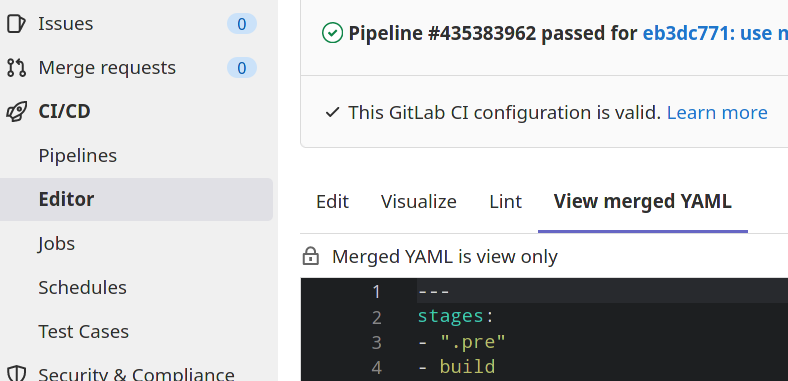
Within the GitLab UI under "CI/CD" -> "Editor" you can show the configuration, visualize it with the stages and jobs and also show the merged version:
Customization
The template may use variables which can be changed from the outside.
But you can also use merging to extend and override configuration in an included template.
Warning
You cannot add or modify individual items in an array. With arrays you have to copy and change them completely.
Default Templates
| Folder | Template | Description |
|---|---|---|
| Workflows | Branch-Pipelines.gitlab-ci.yml | Run pipeline for branches and tags. |
| Workflows | MergeRequest-Pipelines.gitlab-ci.yml | Run pipeline for merge-requests, tags and default branch. |
Pipeline Structuring
The pipelines can be defined in different ways:
- Basic makes a pipeline run each stage after all jobs of the previous are done.
- Direct Acryliy Graph pipelines are based on relationships between jobs and can run more quickly.
- Multi-project pipelines combine pipelines for different projects together.
- Parent/Child for bigger flows with independent parts it can be modularized into sub pipelines (in extra configuration files)
See the following examples to learn how to use them. And via the workflow you define if the whole pipeline is run.
Workflow
The workflow will define if the whole pipeline is added based on some rules. It works like the rules in the jobs:
workflow:
    rules:
        - if: $CI_COMMIT_MESSAGE =~ /-draft$/
          when: never
        - if: '$CI_PIPELINE_SOURCE == "push"'
As GitLab already has ready defined workflows you can include them:
include:
    - template: "Workflows/Branch-Pipelines.gitlab-ci.yml"
Basic
Info
The following examples are working with docker images so you need a working docker runner within your GitLab (mostly default).
The complete pipeline is configured using this single YAML file. See the GitLab Commands for a detailed description.
At first you define the possible stages and all variables or settings which are common for most jobs, you may also define the default docker image:
stages:
    - build
    - upload
    - deploy
    - approve
image: btmash/alpine-ssh-rsync
variables:
    UPLOAD_FOLDER: /opt/upload
Then you define the jobs like:
approve-t:
    stage: approve
    image: appropriate/curl
    dependencies:
        - deploy-t
    script:
        - curl -v $TEST_URL/gui
You may use some YAML anchor templates to do common tasks like:
.template-ssh: &ssh_job
    before_script:
        # setup ssh
        - mkdir -p ~/.ssh
        - chmod 700 ~/.ssh
        - echo -e "Host *\n\tStrictHostKeyChecking no\n\n" > ~/.ssh/config
        - echo "$SSH_PRIVATE_KEY" > ~/.ssh/id_rsa
        - chmod 600 ~/.ssh/id_rsa

deploy-t:
    stage: deploy
    dependencies:
        - upload-t
    <<: *ssh_job
    script:
        # deploy
        - ssh $TEST_SSH rm -rf /opt/my-app
        - ssh $TEST_SSH cp -rL $UPLOAD_FOLDER/my-app-$CI_PIPELINE_ID /opt/my-app
        # restart
        - ssh $TEST_SSH sudo systemctl restart my-app.service
Direct Acryliy Graph
Use needs to execute jobs out-of-order. You can ignore stage ordering and run some jobs without waiting for others to complete. Jobs in multiple stages can run concurrently.
linux:build:
    stage: build
    script: echo "Building linux..."

mac:build:
    stage: build
    script: echo "Building mac..."

lint:
    stage: test
    needs: []
    script: echo "Linting..."

linux:rspec:
    stage: test
    needs: ["linux:build"]
    script: echo "Running rspec on linux..."

mac:rspec:
    stage: test
    needs: ["mac:build"]
    script: echo "Running rspec on mac..."

production:
    stage: deploy
    script: echo "Running production..."
When a job uses needs, it no longer downloads all artifacts from previous stages by default. It only download artifacts from the jobs listed in the needs configuration.
If a dependency is defined as optional it will not cause a pipeline error if the dependency job is not included because of it's rules:
needs:
    - job: build
      optional: true
Parent/Child
Here we define two separate configuration files which are called from the main .gitlab-ci.yml:
staging:
    trigger:
        include:
            - local: .gitlab-ci-staging.yml
        strategy: depend

production:
    trigger:
        include:
            - local: .gitlab-ci-production.yml
        strategy: depend
    rules:
        - if: $CI_COMMIT_TAG
As they are defined as depend the main will wait for them. The prodcution pipeline is only started if a tag is set.
Then the child pipelines can have everything you normally put into the main:
stages:
    - build
    - upload
    - deploy
    - approve
image: btmash/alpine-ssh-rsync
variables:
    UPLOAD_FOLDER: /opt/upload

---
approve-t:
    stage: approve
    image: appropriate/curl
    dependencies:
        - deploy-t
    script:
        - curl -v $TEST_URL/gui
Within GitLab this looks like:

Info
A child pipeline has it's own pipeline ID.
With the use of needs the child pipeline can also access artefacts of the parent:
create-artifact:
    stage: build
    script: echo "sample artifact" > artifact.txt
    artifacts:
        paths: [artifact.txt]

child-pipeline:
    stage: test
    trigger:
        include: child.yml
        strategy: depend
    variables:
        PARENT_PIPELINE_ID: $CI_PIPELINE_ID
use-artifact:
    script: cat artifact.txt
    needs:
        - pipeline: $PARENT_PIPELINE_ID
          job: create-artifact
Environments
Environments help with continuous deployment of your software. It will provide you twith a report of the last deployments on each environment.
Prerequisites:
- Enable Settings -> General -> Visibility -> Operations
- Deployments -> Environments -> New environments
After that you can specify environments in the deploy jobs:
deploy to production:
    stage: deploy
    script: git push production HEAD:main
    environment: production
Specific Jobs
Pages
You can have a static site included in GitLab. This may be done using MkDocs or GitBook using the CI Pipeline to generate the pages.
image: alinex/mkdocs

pages:
    stage: deploy
    script:
        - "/run.sh"
        - rm -rf public
        - mv site public
    artifacts:
        paths:
            - public
    interruptible: true
The before script updates all the mkdocs code to the newest version. Within the pages section the html will be made, moved to the public path and this is made accessible for gitlab as artifacts. All the rest will gitlab do by itself and update your pages.
Security Testing (Free)
There are already templates to use them, to start you have to define a test stage and include the needed templates. A simple setup can be:
stages:
    - test

include:
    - template: Security/SAST.gitlab-ci.yml
    - template: Security/Secret-Detection.gitlab-ci.yml
    - template: Security/Dependency-Scanning.gitlab-ci.yml
    - template: Security/License-Scanning.gitlab-ci.yml
    - template: SAST-IaC.latest.gitlab-ci.yml
    - template: Code-Quality.gitlab-ci.yml
The templates will already check your code and report every evidence.
Dependency Scanning analyze external dependencies (e.g. libraries like Ruby gems) for known vulnerabilities on each code commit with GitLab CI/CD. This scan relies on open source tools and on the integration with Gemnasium technology (now part of GitLab) to show, in-line with every merge request, vulnerable dependencies needing updating. Results are collected and available as a single report.
Static Application Security Testing scans the application source code and binaries to spot potential vulnerabilities before deployment using open source tools that are installed as part of GitLab. Vulnerabilities are shown in-line with every merge request and results are collected and presented as a single report.
Secret Detection checks for credentials and secrets in commits.
The following setting will also scan the whole git history:
secret_detection:
    variables:
        SECRET_DETECTION_HISTORIC_SCAN: "true"
Code Quality checks automatically analyze your source code to surface issues and see if quality is improving or getting worse with the latest commit.
Test coverage visualization collect the test coverage information of your favorite testing or coverage-analysis tool, and visualize this information inside the file diff view of your merge requests.
test:
    script:
        - npm install
        - npx nyc --reporter cobertura mocha
    artifacts:
        reports:
            cobertura: coverage/cobertura-coverage.xml
License Compliance will check project dependencies are for approved and blacklisted licenses defined by custom policies per project. Software licenses being used are identified if they are not within policy. This scan relies on an open source tool, LicenseFinder and license analysis results are shown in-line for every merge request for immediate resolution.
Infrastructure as Code scanning supports configuration files for Terraform, Ansible, AWS CloudFormation, and Kubernetes.
Dynamic Application Security Testing analyzes your running web application for known runtime vulnerabilities. It runs live attacks against a Review App, an externally deployed application, or an active API, created for every merge request as part of the GitLab's CI/CD capabilities. Users can provide HTTP credentials to test private areas. Vulnerabilities are shown in-line with every merge request. Tests can also be run outside of CI/CD pipelines by utilizing on-demand DAST scans.
stages:
  - dast

include:
  - template: DAST.latest.gitlab-ci.yml

 variables:
   DAST_WEBSITE: https://example.com # url to analyze
Accessibility determine the accessibility impact of pending code changes.
stages:
    - accessibility

include:
    - template: "Verify/Accessibility.gitlab-ci.yml"

variables:
    a11y_urls: "https://about.gitlab.com https://gitlab.com/users/sign_in"
Security Testing (Ultimate)
With the ultimate edition you can also add:
stages:
    - test

include:
    - template: Container-Scanning.gitlab-ci.yml
    - template: Security/Cluster-Image-Scanning.gitlab-ci.yml
Container Scanning Docker image may itself be based on Docker images that contain known vulnerabilities. By including an extra job in your pipeline that scans for those vulnerabilities and displays them in a merge request, you can use GitLab to audit your Docker-based apps.
Cluster Image Scanning run workloads based on images that the Container Security analyzer didn’t scan. These images may therefore contain known vulnerabilities. By including an extra job in your pipeline that scans for those security risks and displays them in the vulnerability report, you can use GitLab to audit your Kubernetes workloads and environments.
Metrics Threat Monitoring provides alerts and metrics for the GitLab application runtime security features.
Fuzz testing performs fuzz testing of API operation parameters. Fuzz testing sets operation parameters to unexpected values in an effort to cause unexpected behavior and errors in the API backend.
stages:
    - fuzz

include:
    - template: API-Fuzzing.gitlab-ci.yml

variables:
    FUZZAPI_PROFILE: Quick-10
    FUZZAPI_OPENAPI: test-api-specification.json
    FUZZAPI_TARGET_URL: http://test-deployment/
Coverage-guided fuzz sends random inputs to an instrumented version of your application in an effort to cause unexpected behavior.
stages:
    - fuzz

include:
    - template: Coverage-Fuzzing.gitlab-ci.yml

my_fuzz_target:
    extends: .fuzz_base
    script:
        # Build your fuzz target binary in these steps, then run it with gitlab-cov-fuzz>
        # See our example repos for how you could do this with any of our supported languages
        - ./gitlab-cov-fuzz run --regression=$REGRESSION -- <your fuzz target>
All other detections also have more checks and features like vulnerabilities pages and auto ticket creation in the ultimate edition.
Browser Performance determine the rendering performance impact of pending code changes in the browser.
stages:
    - performance

include:
    template: Verify/Browser-Performance.gitlab-ci.yml

browser_performance:
    variables:
        URL: https://example.com
Load Performance can test the impact of any pending code changes to your application’s backend in GitLab CI/CD, using k6 for measuring the system performance of applications under load.
stages:
    - performance

include:
    template: Verify/Load-Performance-Testing.gitlab-ci.yml

load_performance:
    variables:
        K6_TEST_FILE: <PATH TO K6 TEST FILE IN PROJECT>
Debugging
If something is not working within an image you can do everything by hand. Connect to the docker image using:
docker run -it -v $PWD:/code opensuse/leap bash
cd /code
Then do as the script called every command to find the failure.