Atom
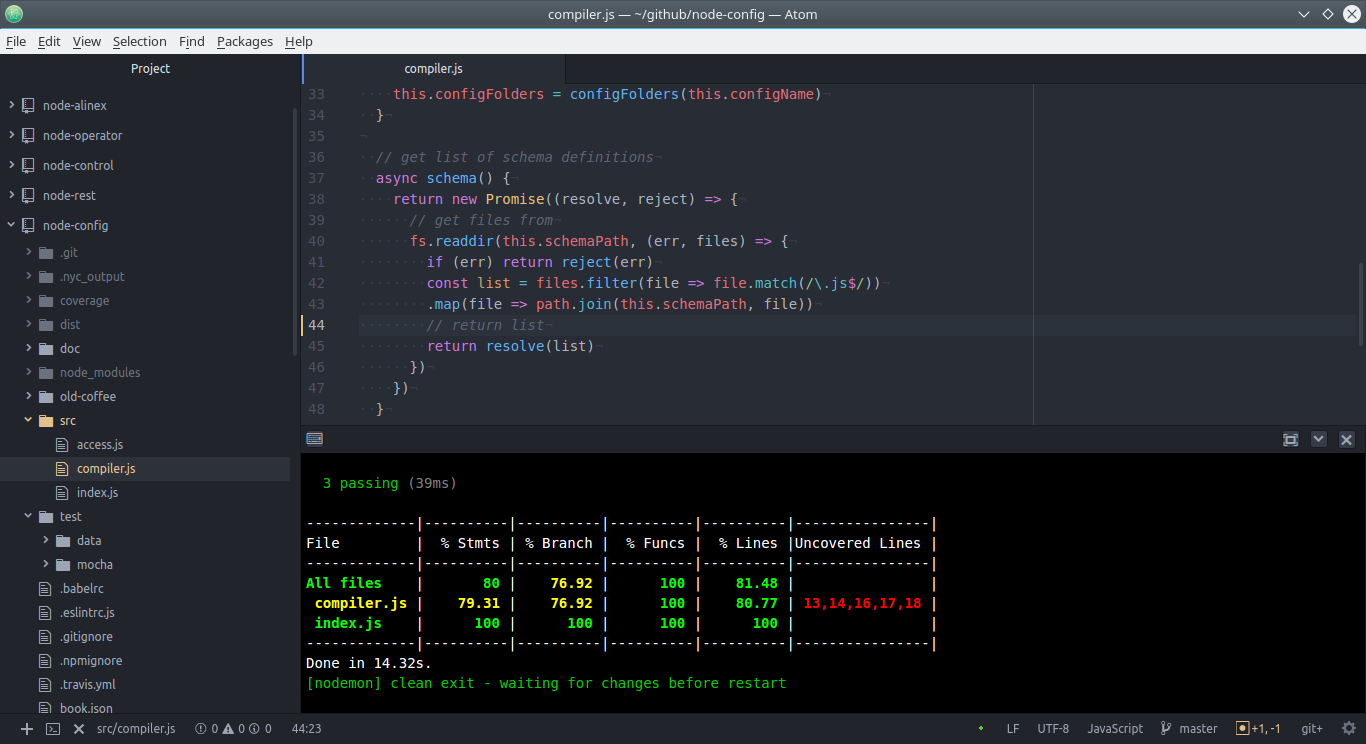
After using Sublime Text 3 for some time I was impressed about Atom. Atom is mostly based on JavaScript itself to be easy expendable with plugins. Because of that there are a lot of extensions for nearly every language and need. Now atom really grew to a full fledged IDE.
Installation
That is an easy task, only download and install it directly from their homepage.
After that you may install the needed plugins, but only install what you really needs else it may get bloated. To reset everything remove the directory ~/.atom.
Plugins
General
- atom-ide-ui - tools for ide
- character-table - to easy find any UTF character
Extended
project-manager- helps to switch between different workspaceshighlight-selected- show all occurrences of the selected textmarkdown-pdf- transform markdown into PDFpdf-view- view PDF files inlineopen-in-browser- to open HTML from the project treekeybinding-cheatsheet- display possible keystool-bar-atom- customizable toolbar
Programming
docblockr- helper to write inline documentationtodo-show- opens a pane for all to-do'ssplit-diff- shows visual diff between split panesatom-beautify- highlight some included languagespigments- color display on definitionplatformio-ide-terminal- integrated consoleatom-ternjs- auto completionlinter-json-lint- JSON linter
TypeScript
ide-typescript- language supportlinter-tslint- TypeScript linter
ES.Next & Co
linter-eslint- included lintingflow-ide- to lint flow syntax and auto completeautocomplete-modules- for require/import auto completion
Also there are language and linter plugins for nearly every language and script you use.
Basic Shortcuts
At first it is very easy and a lot like sublime. The major shortcut to know for a command search is: Ctrl+Shift+P
Additionally the following may be helpful:
- Ctrl+\ will toggle the file tree view
- Alt+\ switch focus to/from tree view
- Ctrl+T open fuzzy find for files in current project
- Ctrl+B open fuzzy search to search in open files
- Alt+Shift+P switch projects (using project-manager)
Editing
Move Cursor
- Ctrl+Left move to beginning of word
- Ctrl+Right move to end of word
- Ctrl+G go to line (line:column)
Edit
- Ctrl+Up / Ctrl+Down moves the current line or selected lines up/down
Multi cursor
- Alt+Shift+Up / Alt+Shift+Down adds another cursor one line above/below
- Ctrl+Left Button add or remove another cursor
- Ctrl+D / Ctrl+U ad and remove cursor at the next match of selected word
- Esc to remove multi cursor and go back to a single one
Maybe extend the key mapping with the following:
'.platform-linux atom-text-editor':
  'shift-alt-L': 'editor:split-selections-into-lines'
Code Specific Helpers
Show Help
- Ctrl+Shift+M shows a rendered preview (realtime)
- Alt+Shift+T shows the to-do list (using
todo-show)
Using Git
Modify
- Ctrl+Shift+H show menu of all git commands
- Ctrl+Shift+A adds new files
- Ctrl+Shift+A S show status of files
- Ctrl+Shift+A C commit changes (give a message and save Ctrl+S)
- Ctrl+Shift+A P add all changed files and commit + push to remote